Image posting guide to best practice

When we post an image in an article, we need to describe our photo, in words. We must populate a number of fields for search engine optimisation, viewer accessibility and our own convenience Despite the promised / threatened power of Artificial Intelligence, computers can’t see images. When we conduct a search in Google (other search…

When we post an image in an article, we need to describe our photo, in words. We must populate a number of fields for search engine optimisation, viewer accessibility and our own convenience

Despite the promised / threatened power of Artificial Intelligence, computers can’t see images. When we conduct a search in Google (other search engines are available) for, say, a Ford Corsair, Google does not look at photos of cars and spot the ones containing Ford Corsairs.
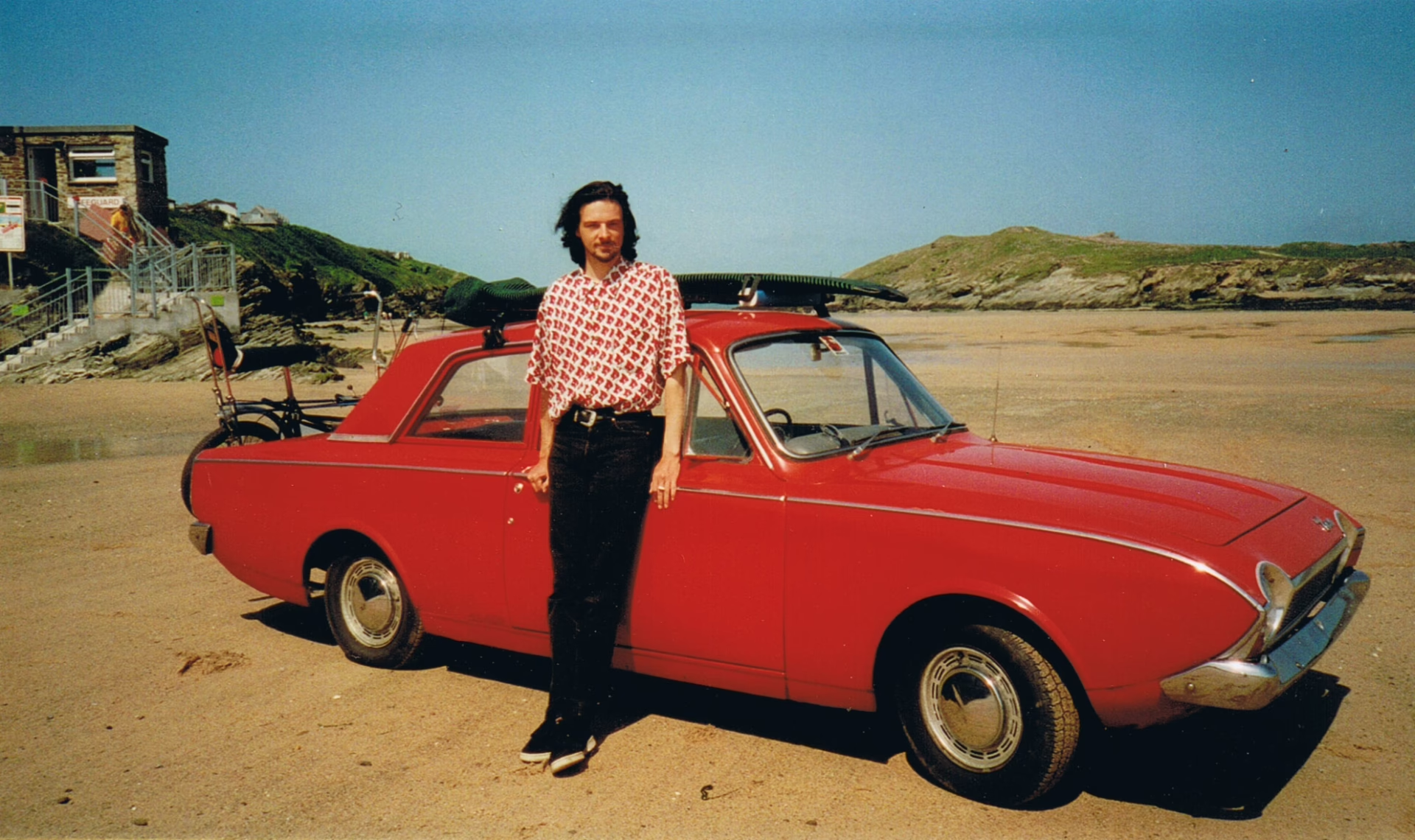
Google will return this photo in searches for ‘Ford Corsair’ because we just mentioned it in this photo caption. However, if we then talk about a Ford Escort in the same caption (see what we did there?), Google is just as likely to return this photo in searches for ‘Ford Escort’. Google does not know what a Ford Corsair, or Ford Escort is or what they look like, it can only match search words to the ones we use to describe our content in the metadata fields associated with this photo
New caption here
Resaved version of Ford Corsair photo converted back to AVIF
Google will return this photo in searches for ‘Ford Corsair’ because we just mentioned it in this photo caption. However, if we then talk about a Ford Escort in the same caption (see what we did there?), Google is just as likely to return this photo in searches for ‘Ford Escort’. Google does not know what a Ford Corsair, or Ford Escort is or what they look like, it can only match search words to the ones we use to describe our content in the metadata fields associated with this photo

There are four metadata fields for each image we upload and we should populate them all for best search engine optimisation (SEO) and accessibility. Write a caption that describes the photo for the benefit of a person who cannot see it. This description is what screen readers relay to visually impaired visitors, and what Google uses to index the content of the image.

Start in the library

I recommend that you name the photos accompanying your article with either the full caption or a précis of it. Immediately, we are attaching useful metadata to our image before we’ve even uploaded it. Then upload all of your images in the media library.

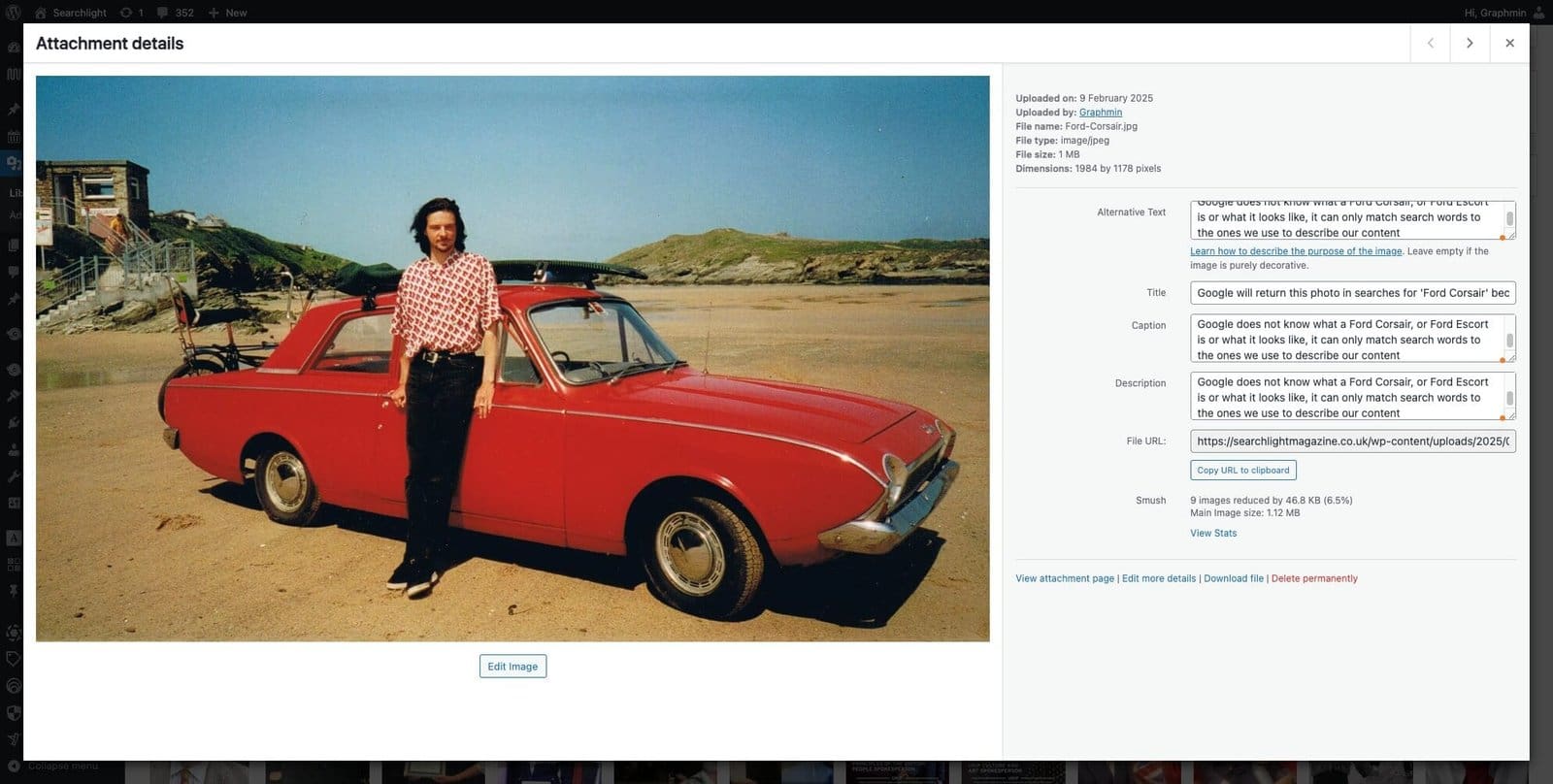
Load your image in the media library
Load your image in the media library. For easy access to the four metadata fields, go Media > Library. This is a little bit of a runaround but WordPress access to these fields is not as intuitive in the dash when you have uploaded a series of photos
Populate all four of the image metadata fields with your caption
Populate all four of the image metadata fields with your description; Alternative Text, Title, Caption, Description. There is an argument for, in some circusmstances, putting differing text in these fields but we’ve got lives to live and a good, info-rich caption will cover the bases and give Google the info it needs

I advise loading your images in the media library directly, before posting your article, because it is a more reliable way of adding photos. WordPress can be glitchy when uploading photos directly into a post.

Develop a habit of always populating all of the your image metadata fields

Also, it is good practice because you will develop a habit of always populating all of your image metadata fields. If you upload your images directly to your article, you have to remember to go to the media library afterwards to put in all the metadata.

Placing images in posts

Place the image in your article from the media library. By default, WordPress places images with alignment ‘none’ which is not very useful. If your image is large enough and largely landscape, choose ‘centre’ and in the block toolbar on the right, select Block > Resolution > Full Size.
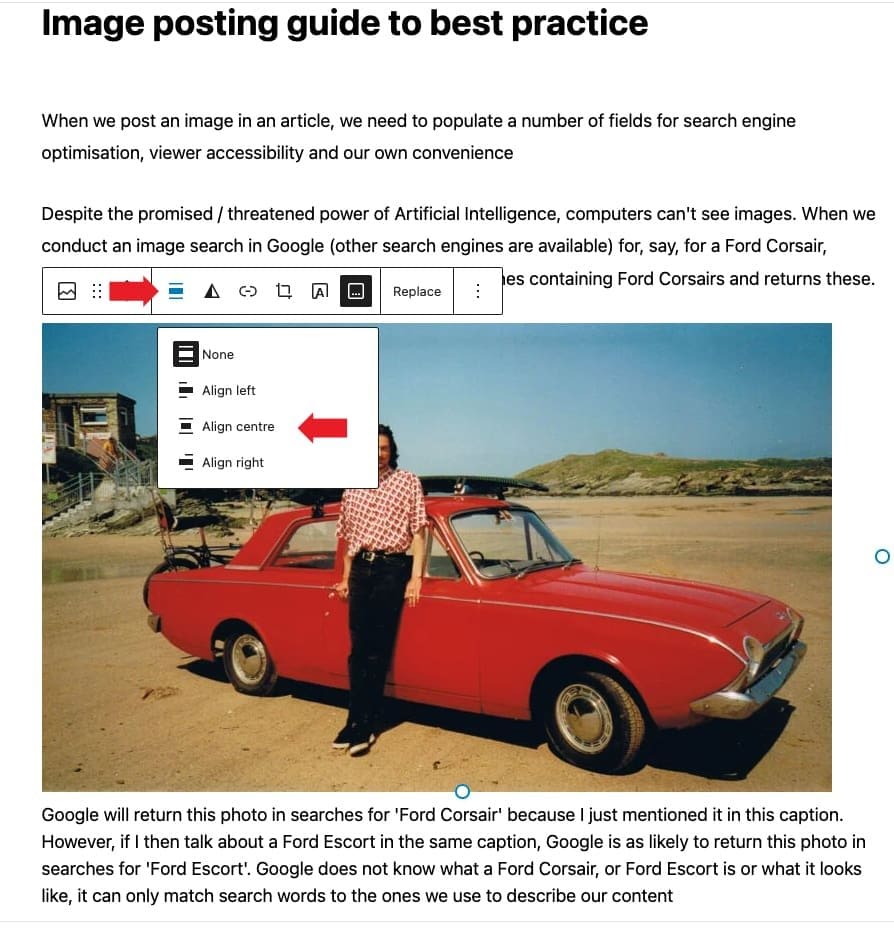
Set the image alignment to 'centre' (sic)
Set the image alignment to ‘centre’

A combination of WordPress native functions and the programming in this website design takes care of sizing images for different screen sizes. Load the biggest version you have of your image when you place it in the Media library, and when you place it in an article, set the image’s block settings of Resolution to ‘Full Size’.

Set the image resolution to 'full size' in the block toolbox
Set the image resolution to ‘full size’ in the block toolbox

Notice that these images have a zoom effect on mouseover. This effect indicates the images can be opened for full-screen viewing. By default, WordPress places images with no link. Go to the link button in the image’s block toolbar to connect the image to its image file. This enables visitors to click-on and view the image as large as possible on their device.

Link your photo to its image file so that visitors can click on it to see it at full screen size

Image justification and text wrap

Earlier in this article we discussed changing the default setting of an image’s alignment from ‘none’ to ‘centre’. This won’t produce much of an obvious change, if any, in the look of the image in your post but it is important.

Light bulb trees bearing fruit in a park in the centre of Boston, Massachusetts, USA
The beautiful colours of Autumn in a suburb of Boston, Massachusettes, USA

Posting images without alignment is a bit scrapbook. For professional magazine layout in our articles, we need to set the alignment of our images.

For the most part, stick with centre alignment. If the image is big (wide) enough, it will fill the width of the article and this will look tidy.

If you have only a small image, one that won’t fill the width of the article, then we can use the ‘Left’ and ‘Right’ alignment settings. This wraps the text around the image for a professional magazine layout look.

Automatic image sizing

Thanks to some nifty programming in this design, you don’t need to do any setting of the image size. Load and place the largest image you have. When the image is set to left or right alignment, it is automatically displayed at a width of 50% of the available page width.

A breakpoint setting displays the image at full width on smaller screens.

When an image is set to Left or Right alignment, it is displayed at 50% of the width of the viewers device with the text wrapping around it. At a breakpoint, on smaller screens, the image displays at full width automatically. On the left is the view on a 550px width screen, on the left at 350px
When an image is set to left or right alignment, it is displayed at 50% of the width of the viewers device with the text wrapping around it. At a breakpoint, on smaller screens, the image displays at full width automatically. On the left is the view on a 550px width screen, on the right at 350px
The natural light in Nice, France, makes photos look like they were shot on Kodachrome in the 60s despite being fresh out of a mobile phone

We can set photos to left alignment, but this is not idea for neurodiverse visitors to your website. Indeed, for all viewers, text is easier to read if the left margin is kept in the same place.

To this end, use right alignment for images you want to wrap the article around.

Using image metadata in our Media Library

Let’s say you’ve got a photo of a Ford Cortina in Cape Town, South Africa and you want to reuse it in a new post. You’ve got hundreds of posts in your archive and you can’t remember which one you used it in. Similarly, you have hundreds of photos in your Media Library.

How do you track down this image? Because, when you uploaded this image, you added a caption detailing the information needed to identify it in a search of your Media Library.
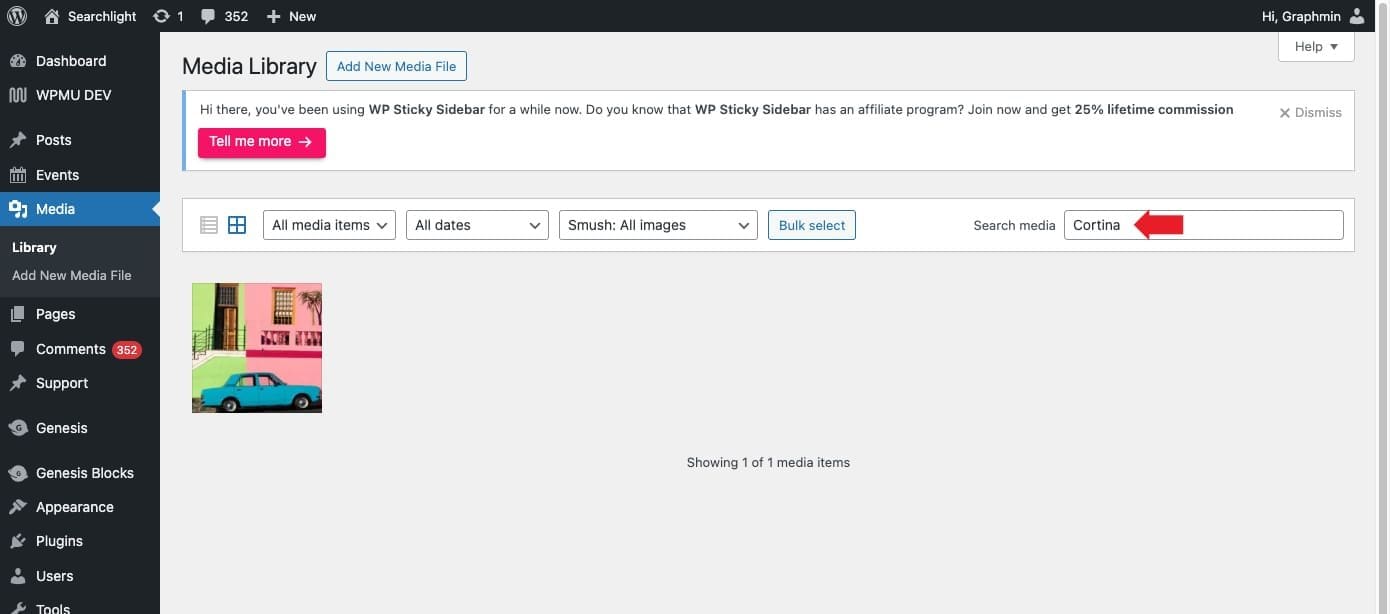
Adding a photo content description to your uploaded images makes it easy to find it later in your media library. If you leave it with the file name of 'image.jpg', 'screenshot' or 'DSC_2377', then you'll only be able to find it again by scrolling through your Media Library by hand. No fun if you've hundreds of images
Adding a photo content description to your uploaded image makes it easy to find it later in your media library. If you leave it with the file name of ‘image.jpg’, ‘screenshot’ or ‘DSC_2377’, then you’ll only be able to find it again by scrolling through your Media Library by hand. No fun if you’ve hundreds of images

But if we reuse a photo, it will have the same caption as we put in the metadata when we uploaded it in the first instance. In the case of the Ford Corsair photo, it comes with the caption about Google and metadata and all that. But we can use the photo from our Media Library but put a different caption on it.
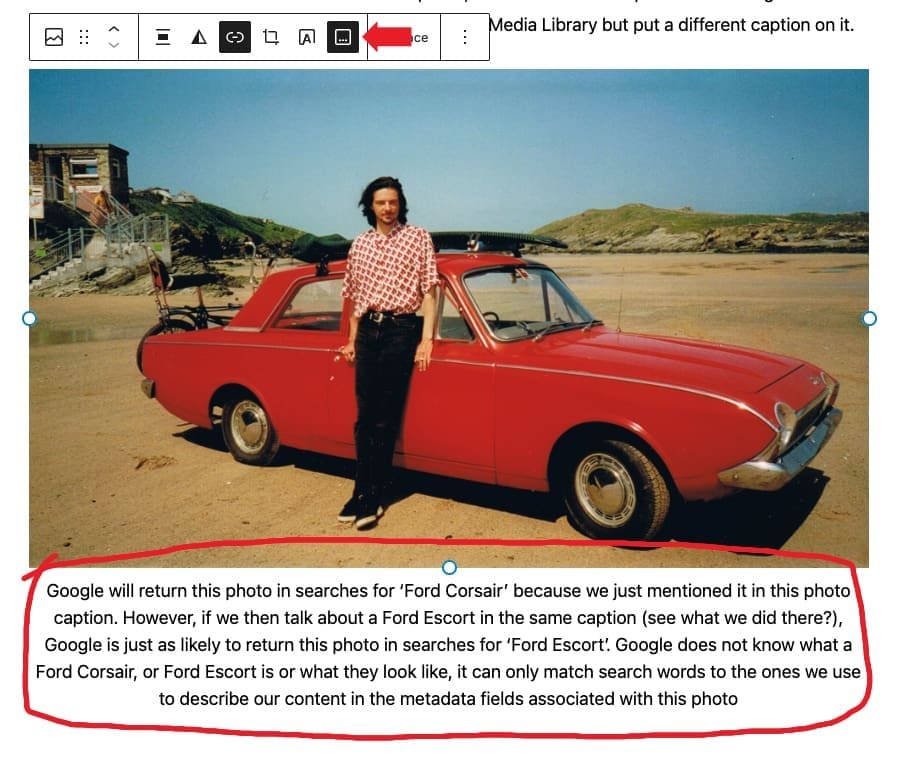
Local changes to the photo caption can be made where ever the image is used without it changing the metadata in the Media Library and without changing the caption on the image where it appears in other places
Local changes to the photo caption can be made wherever the image is used without it changing the metadata in the Media Library and without changing the caption on the image where it appears in other places
Google will return this photo in searches for ‘Ford Corsair’ because we just mentioned it in this photo caption. However, if we then talk about a Ford Escort in the same caption (see what we did there?), Google is just as likely to return this photo in searches for ‘Ford Escort’. Google does not know what a Ford Corsair, or Ford Escort is or what they look like, it can only match search words to the ones we use to describe our content in the metadata fields associated with this photo
A surfer with his Ford Corsair, minimal surfboard and MkI Chopper bicycle on Fistral Beach, Newquay

Simply type over the caption in your post edit to put the relevant information for this usage of the image.

Studies of website activity analytics confirms the obvious, images greatly improve visitor engagement. They are worth the effort

It is very easy to upload a photo straight into a post and not bother with all of this palaver but it is the attention to detail that separates the professional from the amateur.

We need Google to know all about the content of the Searchlight site to get the best returns in search results.


Paul Nowak

Paul Nowak
The essence of trade unionism is solidarity, fairness and equality – for all workers – from all backgrounds. That’s why our fight against the far-right has always been part of our movement’s DNA. Searchlight is an incredibly important resource for trade unions and members to understand the contemporary tactics of far-right activity. Their work and intelligence gathering over the years have been incredibly insightful for the work we do, and how we fight the scourge of fascism.
Paul Nowak
TUC General Secretary

Paul Holborow

Paul Holborow
In the campaign against the National Front, Searchlight provided a rich and utterly reliable basis for much ANL propaganda – particularly with reference to the two leading NF figures, John Tyndall and Martin Webster. The appearance of Tyndall in full nazi uniform, drawn from the archives of Searchlight, was a key part of ANL propaganda, coupled with deeply damaging nazi quotes from Webster.
Paul Holborow
Founding member of the ANL and National Organiser 1977-81

Alf Dubs

Lord Alf Dubs
Searchlight’s voice is more important than ever, and I am delighted that it will now be available to a wider audience than ever before in its new incarnation online. Searchlight has been extremely helpful over the years in exposing the far right, corruption, criminality and the murky links between organised crime and powerful interests in the UK and abroad. I wish Searchlight the very best.
Alf Dubs
Labour peer, former MP and Cabinet Minister, and Kindertransport child

Peter Hain

Peter Hain, founder of the ANL and friend of Searchlight
British Jews have been persecuted over the centuries; British blacks since the Windrush generation of the 1950s; British Muslims, especially after the Islamist 9/11 and then 7/7 terrorist attacks in New York 2001 and London 2005. But until the last few years there has not been a simultaneous threat against all three British communities of Jewish, Black and Muslim Britons – meaning the need for Searchlight has never been greater.
Peter Hain
Labour peer, former MP and Cabinet Minster

Professor Colin Holmes

Professor Colin Holmes
Everyone who wants to understand contemporary racism and its historical background needs to read Searchlight.
Professor Colin Holmes
University of Sheffield

Nick Davies

Nick Davies
To investigate fascists takes real courage and unusual commitment. The government, police, mainstream media occasionally take a look, but in the UK only Searchlight have kept at it, relentlessly and admirably, regardless of threat or obstacle. It’s journalism that matters. A rare thing.
Nick Davies
Multi-award-winning investigative journalist and writer

Today’s most read